%20(1).png)

HVAC Work Order Software and What Every Work Order Should Capture

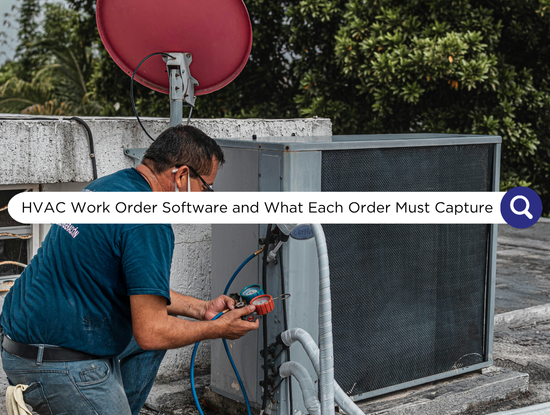
HVAC work order software creates, assigns, tracks, and closes the record of every job: who asked for what, what the technician found, what was done, which parts went in, and what the customer signed off on. The software helps, but the quality of each work order matters more than the tool that holds it. A work order missing the equipment model, the parts used, or a customer signature leads to callbacks, disputed invoices, and billing delays on any platform.
This guide covers how a work order differs from an estimate and an invoice, what every HVAC work order should capture before, during, and after a visit, how templates differ by service type, how to close a work order out, what to look for in the software, and who should review the records.
Key Takeaways
A work order is the record of a job. It is not the estimate that comes before it or the invoice that comes after.
Capture details in three stages: before the visit (customer, site, equipment, problem, authorization), during it (findings, work done, parts, time, photos, refrigerant), and after it (sign-off, unfinished work, follow-up).
Use a different template for each service type. Maintenance, repair, installation, and emergency calls each need different fields.
A work order is closed when someone has reviewed it and it is ready to bill, not when the technician leaves the site.
Look for software that supports templates by service type, required fields, photo and signature capture, and links to equipment history and invoicing.
A home services VA or office lead can review completed work orders daily, chase missing details, and hand clean records to invoicing.
Work Order, Estimate, and Invoice: Three Different Documents
These three documents often get blurred together, and the blur causes problems. An estimate proposes a price. An invoice requests payment. The work order sits between them as the working record of the job.
Document | Purpose | Created when | Who uses it |
Estimate | Proposes scope and price for the customer to approve | Before the work is approved | Customer and office |
Work order | Authorizes the job and records what was requested, found, and done | When the job is approved or booked | Office, technician, and customer sign-off |
Invoice | Bills the customer for completed work | After the work order is closed | Customer and accounting |
Platforms use different names for the same record. You may see it called a job, a service order, or a ticket, and vendors often describe the software as field service ticket software or a field service ticketing system. The record is the same.
Work orders are also what dispatch assigns to technicians. Our HVAC dispatch software guide covers the assigning side. How a finished work order becomes an invoice is covered in our invoice processing workflow guide. This guide covers the record itself, up to the point where it is ready to bill.
What Every HVAC Work Order Should Capture
Think in three stages. Each answers a different question, and a gap in any of them shows up later as a callback or a billing problem.
Stage | What to capture | Why it matters |
Before the visit | Customer name and contact details, service address and access notes, equipment make, model, and serial number, the problem as the customer describes it, service type and priority, warranty or maintenance agreement status, and any spending limit the customer has approved | The technician arrives prepared, and the record shows what the customer authorized |
During the visit | Diagnosis and findings, work performed, parts and materials used, time on site, before and after photos, and refrigerant type and amount where applicable | Supports accurate billing, warranty claims, and recordkeeping |
After the visit | Customer signature or approval, work not completed and why, recommended follow-up work, the next service date for maintenance customers, and completion status | Closes the loop with the customer and surfaces the next job |
Refrigerant deserves its own note. The EPA's Section 608 rules govern how refrigerants are handled, require technician certification, and include recordkeeping duties for some equipment and repairs. Confirm which apply to your equipment, then build fields for refrigerant type and amount into the template so the technician records them on every relevant job.
Photos and signatures are the cheapest protection a small HVAC company has. A before and after photo and a customer's sign-off help settle disputes about what was found and what was done.
Templates by Service Type
One template for every job produces either too many empty fields or too few useful ones. Most HVAC companies need four.
Service type | What the template adds |
Maintenance or tune-up | A checklist of inspection items completed, conditions noted, filter and component status, and the next service date |
Repair or diagnostic | Reported symptoms, diagnosis, repair options with the customer's approval, parts used, and warranty status |
Installation or replacement | Old and new equipment details, the agreed scope, permit or inspection notes where required, and startup checks |
Emergency or after-hours | Priority level, time received and dispatched, any after-hours rate the customer approved, and whether the fix was temporary or permanent |
For maintenance and installation checklists, the Air Conditioning Contractors of America (ACCA) publishes quality standards that many contractors use as a starting point. Adapt them to your own services and keep the template short enough that technicians will complete it.
How to Close Out a Work Order
A work order is not done when the technician drives away. It is done when someone has checked that the record is complete and ready to bill. A simple status flow keeps this visible: Requested, Scheduled, In Progress, Waiting on Parts, Completed, Reviewed, and Ready to Invoice.
The step that most companies skip is Reviewed.
At review, check that:
Every required field is filled in
Parts and quantities are recorded
Photos are attached
The customer's approval is captured
Time on site is recorded
Follow-up work is flagged as a new estimate or work order
The next maintenance date is set, where relevant
Run the review daily. A missing detail is easy to fix the same day and hard to recover two weeks later, when the technician no longer remembers the job.
What to Look for in HVAC Work Order Software
Most field service platforms include work orders, so start with what you already use. When you compare options, focus on the features that matter for the record itself. For a full evaluation method, including a trial plan and cost worksheet, see our field service software guide.
Templates by service type, so each job starts with the right fields.
Required fields, so a work order cannot be closed without a signature, parts, or photos.
Mobile capture of photos, notes, and signatures, tested on a technician's own phone.
Links to the customer and equipment record, so the model, serial number, and past work appear on the work order. Our customer database software guide covers what those records should hold.
Parts and materials line items that carry through to the invoice.
An adjustable status flow, including a review step before invoicing.
A full export, including photos, so you keep your own copy. The IRS publishes guidance on how long to keep business records.
Who Should Review Work Orders
Technicians fill in work orders in the field, which is the right place to capture details and the wrong place to check them. Someone in the office needs to review each completed work order before it goes to invoicing. In a small company that is often the owner, late in the evening, which is how gaps survive.
Technician | Office lead or home services VA | Owner |
Fills in the template, takes photos, gets sign-off, and records parts and refrigerant | Reviews completed work orders daily, chases missing details, and hands clean records to invoicing | Sets the templates and required fields |
Flags problems found on site | Flags follow-up work for quoting and keeps statuses consistent | Decides on exceptions and warranty calls |
Updates status from the field | Reports recurring gaps, such as missing photos or signatures | Acts on the patterns |
For the broader role, see our HVAC virtual assistant guide and our list of 7 SOP tasks you can hand off to an HVAC VA.
Frequently Asked Questions
What is HVAC work order software?
HVAC work order software creates, assigns, tracks, and closes the record of each job, including what the customer requested, what the technician found and did, parts used, photos, and customer sign-off. It is usually part of a broader field service platform and feeds the invoice once the work order is closed.
What should be included on an HVAC work order?
Before the visit: customer details, service address, equipment make, model, and serial number, the reported problem, service type, priority, and any approved spending limit. During it: findings, work performed, parts, time on site, photos, and refrigerant details where applicable. After it: customer sign-off, unfinished work, recommended follow-up, and the next service date.
What is the difference between a work order and an invoice?
A work order is the working record of the job, created when the job is approved or booked and completed as the work happens. An invoice is the bill, produced after the work order is closed. A complete work order is what makes an accurate invoice possible.
Do I need work order software, or can I use paper or spreadsheets?
Paper or spreadsheets can work for a very small operation. They tend to struggle with required fields, photos, signatures, and passing parts and time to invoicing, and a paper work order is only as good as how quickly someone scans and files it. Software starts to pay off when several technicians are in the field at once.
How do I stop work orders from piling up unfinished?
Add a review step and give it an owner. Review completed work orders daily, flag anything missing, and move only reviewed work orders to invoicing. A work order that has not been reviewed is not finished, however long ago the technician left the site.
Find Out Who Should Review Your Work Orders
The right HVAC work order software only helps when every work order gets checked before it is billed. A time audit shows how many hours go to chasing missing details, correcting records, and rebuilding invoices, and which of those a home services virtual assistant could take over first.
About Your Startup Operations
Your Startup Operations (YSO) is a Women-Owned Small Business (WOSB) certified, white-glove operations agency co-founded by Jenna Henao and Alexis Schomer. YSO helps event business owners and other service-based companies step out of daily operations by installing a dedicated Ops Assistant trained specifically for their business, typically helping owners reclaim 30–40 hours per week.
YSO has been featured in Forbes, Voyage LA, Authority Maximizer, EIN Presswire, and AP News.
Explore our event vendor ops services, see client outcomes on our case studies page, or get in touch to talk through what your business needs.
About the Author

Alexis Schomer is the Co-Founder and Marketing & Operations Expert at Your Startup Operations. She works with business owners to optimize operations, improve delegation, and build scalable systems that support sustainable business growth. Drawing on her experience in marketing, entrepreneurship, and business operations, Alexis believes effective delegation is about more than hiring a virtual assistant. It starts with selecting the right person, creating efficient workflows, establishing clear expectations, and providing the training and support needed for teams to succeed. This practical, systems-first philosophy guides every client partnership at YSO. Connect with Alexis on LinkedIn.
Reviewed by

Jenna Henao is the Co-Founder and Operations Expert at Your Startup Operations. She partners with business owners to streamline operations, strengthen workflows, and build reliable teams that drive long-term growth. With a background in entrepreneurship and business operations, Jenna has led initiatives across HR, finance, recruitment, operations, sales, marketing, and team leadership. She has helped businesses grow from six to seven figures by developing scalable systems, recruiting outstanding talent, and implementing processes that support lasting success. Connect with Jenna on LinkedIn.
Free Resources
Access practical tools, templates, and SOPs designed to simplify operations, improve delegation, and support business growth.

25 Tasks You Can Offload To Your VA Today
Your day fills up fast with follow-ups, inbox replies, scheduling, and admin.
This guide
shows exactly
what to hand
off first so
you can
stop doing it all yourself and
free up
real time.

The Ultimate Productivity Toolkit for Event Professionals
Managing clients, coordinating vendors, and handling daily administrative tasks can quickly fill your schedule. This toolkit shares five practical ways a virtual assistant can help streamline your workload so you can spend more time growing your business.

How to Send a Certificate of Insurance (COI)
Submitting a Certificate of Insurance doesn't have to be complicated.
This SOP
provides a clear, step-by-step process to help you submit accurate COIs, avoid delays, and keep approvals moving forward.